

AI Tools for Creating Marketing Presentations: Which Let You Edit Directly?
Picture this: the campaign brief is due tomorrow, your deck is still blank, and the clock is sprinting. AI can generate a full presentation in seconds, yet most “magic deck” apps trap you in new editors and break your exports.
A 2024 AMA survey shows 71 percent of marketers already lean on generative AI each week, but they still grumble about file-format hassles and off-brand visuals. You need AI that works inside PowerPoint or Google Slides—not outside.
So we tested 11 leading AI tools, scoring them on integration, content quality, design control, pricing, and security. The goal: help you pick the sidekick that slashes build time without derailing your brand.
How we picked the standouts
We didn’t start with a hunch, we started with a spreadsheet.
First, we logged more than fifteen AI presentation tools that shipped significant updates in the last eighteen months. Anything built for business users made the cut; hobby projects and academic prototypes sat out.
Next came the scorecard. We graded each product on seven factors that busy marketing teams care about:
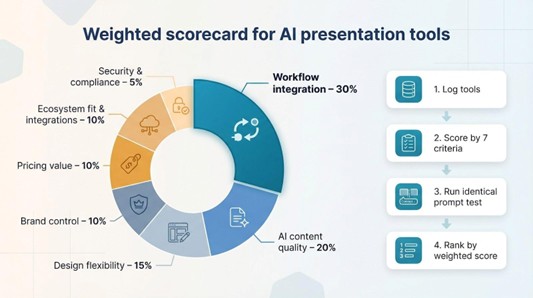
- Workflow integration (30 percent)
- AI content quality (20 percent)
- Design flexibility (15 percent)
- Brand control (10 percent)
- Pricing value (10 percent)
- Ecosystem fit and integrations (10 percent)
- Security and compliance (5 percent)
Integration carries the most weight because, if you can’t edit AI-generated slides inside PowerPoint or Google Slides, you spend extra time shuffling files, undercutting the promise of “instant” decks.
For each factor we used a five-point scale. A direct add-in like Plus AI earned a perfect five for integration because it lives inside your slide editor. A web-only tool with shaky exports scored two or three.
We didn’t rely on press releases. Our team ran the same prompt, “Draft a ten-slide social launch plan,” through every platform, recorded generation time, and noted how much cleanup was required. We also reviewed user feedback and Reddit threads for pain points such as brand-color drift or API glitches.
Finally, we multiplied each raw score by its weight, summed the totals, and let the math decide the ranking. The outcome is a list driven by real-world practicality, not showroom demos.
At a glance: how the top tools stack up
Scan the grid, spot the tools that fit your workflow, then read on for the stories behind each score.
| Tool | Edit inside Slides or PowerPoint? | Sweet spot | Key trade-off |
| Plus AI | Yes | Fast, on-brand decks without leaving PowerPoint or Slides | Works only in those apps |
| SlidesAI | Yes | Budget-friendly speed boost for Google Slides users | Basic layouts need polishing |
| Microsoft Copilot | Yes | Instant drafts from Word or Excel content | Output looks generic |
| Google Slides Duet AI | Yes | Quick text help in Google Workspace | Can’t auto-build full decks |
| Gamma | No (export) | Interactive web decks that impress clients | PowerPoint exports need cleanup |
| Canva Magic Design | No (export) | Designer-quality visuals for non-designers | AI copy feels plain |
| Beautiful.ai | No (export) | Auto-formatted corporate slides with clean layouts | Limited creative freedom |
| Visme | No (export) | Data-driven reports with live charts | Steeper learning curve |
| Pitch | No (export) | Real-time team collaboration on sales decks | Online only; PowerPoint export is paid |
| Prezi AI | No (PDF/video) | Zoom-style storytelling that stands out | Motion can distract some viewers |
If you see “Yes” under Edit inside Slides or PowerPoint, you’ll work in familiar territory. Everyone else offers creative perks, but you’ll switch between editors to finalize your deck.
1. Plus AI: your AI copilot stays inside the slide editor
With over one million installs and marketplace ratings above 4.5 stars, Plus AI is an ai presentation maker that lives inside the editors you already use. Open PowerPoint or Google Slides, launch the Plus AI sidebar, type a short brief, and a ten-slide deck appears in under thirty seconds (ActionSprout test, 2025).
Plus AI presentation maker inside PowerPoint or Google Slides screenshot.
Because the add-in runs inside the native editor, every text box, shape, and chart stays editable. Need tighter copy? Highlight a sentence, click Rewrite, and Plus supplies a cleaner line without shifting the layout. Want a new image? Describe it and the graphic lands on the slide already sized to fit.
Brand rules remain intact. Plus applies your master template, so colors and fonts match your guidelines. Live charts can link to Google Sheets, keeping KPI slides current with no extra clicks.
Pricing is roughly the cost of a Canva Pro seat per user each month, and Microsoft marketplace reviews average 4.8 stars. If your team works in Keynote, though, Plus won’t help. For PowerPoint or Slides users, it turns blank-slide dread into a five-minute task.
2. SlidesAI: speed boost for Google Slides power users
SlidesAI is the lightweight plug-in you install, forget, and then realise you once built decks the slow way.
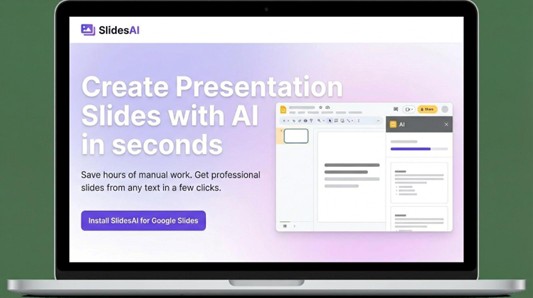
SlidesAI Google Slides add-on generating a deck from text.
Paste a blog post, white paper, or rough outline into the sidebar and click Generate. Seconds later you see 12 neatly titled slides that already match your active Google Slides theme.
Speed is the headline benefit. SlidesAI cleans prose, crops images, and keeps every element editable because it never leaves the native canvas. You avoid copy-paste hassles, broken fonts, and lost animations.
Cost helps too. The Pro plan is about $10 per user each month, with team discounts that lower the rate for shared quotas.
Trade-offs? Layouts can feel plain, so plan to add stronger visuals or a premium template before sharing with executives. The free tier also limits daily generations, so heavy users will outgrow it quickly.
If your campaigns live in Google Workspace and you need a faster route from brief to first draft, SlidesAI is the most affordable productivity lift you can buy this quarter.
3. Microsoft Copilot: draft decks in a single command
If your company relies on PowerPoint, Copilot already sits on the ribbon. Type “Turn our Q4 marketing report into a ten-slide executive summary,” press Enter, and the AI turns tables and text from Word or Excel into a deck in seconds.
No uploads or extra log-ins are needed, and every file stays inside your Microsoft 365 tenant. Copilot even adds speaker notes and design suggestions without additional clicks.
The downside is style. Reviewers call the slides “serviceable but bland,” with rigid layouts and stock visuals (TechLearning review, 2025). You will likely switch to your branded template and refine copy before sharing with leadership.
For enterprise teams that already license Microsoft 365, Copilot adds this feature at no extra cost. Use it to pull data, outline the story, and then add human flair to help the deck resonate.
4. Google Slides Duet AI: helpful, not yet hands-free
Duet AI adds Gemini-powered assistance to Google Slides, acting more like a writing coach than a full-service designer.
Ask for an outline and Duet drafts slide titles plus bullet points on the spot. Need an image? Describe it and an original graphic appears within seconds, sized to fit. Translation, tone shifts, and quick rewrites all live in the sidebar, so language polish stays easy.
What it can’t do yet is build an entire deck from a single sentence. You still create blank slides and choose layouts yourself. Reviewers call the design suggestions “basic,” especially compared with Canva or Beautiful.ai.
For Workspace-centric teams, the tool is included in most Business and Enterprise plans at no extra cost. Use it as a brainstorming companion, then apply your own templates and visuals for a finish that stays on brand.
5. Gamma: interactive decks that feel like a microsite
Gamma replaces static slides with scrollable cards. Paste a brief, approve the AI outline, and the platform builds a web presentation complete with click-to-reveal sections, embedded video, and bold, magazine-style typography.
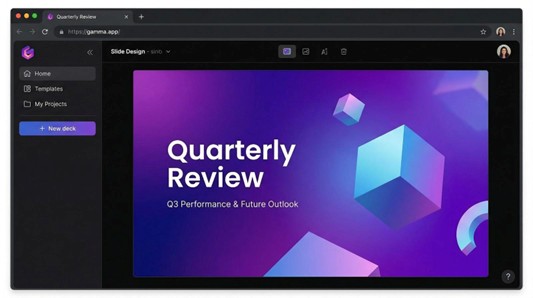
Gamma interactive web presentation with scrollable cards screenshot.
Clients appreciate the share link because they can skim, expand, and comment without downloading files. Meanwhile, you get analytics that show where viewers linger and what they skip.
A PowerPoint export exists, but plan a short cleanup session. Web fonts and responsive layouts rarely survive the trip perfectly, so budget about 15 extra minutes for tweaks.
Customization is simple: choose a theme, add your logo, and adjust brand colours. You will not have pixel-level control, so think of Gamma as a storytelling shortcut rather than a precision design lab.
The generous free tier makes testing painless, and paid plans start at about $10 per user each month. Reach for Gamma when you need to impress or when a live link beats a bulky email attachment.
6. Canva Magic Design: instant polish for visually picky teams
Open Canva, type “Product-launch deck,” and within seconds three fully styled presentations appear.
The AI pairs your prompt with Canva’s library of templates, photos, and icons. Choose a style—bold, minimalist, or playful—and the deck fills with on-topic images and colour-coordinated slides. If you load a Brand Kit, Canva applies your exact fonts and palette automatically, so every slide aligns with your guidelines.
Editing stays simple. Drag a corner, change a background, or use Magic Write to refine a headline. Because every element sits inside Canva’s familiar canvas, anyone who has created a social post can adjust slides without training.
Copy is the main compromise. Magic Design focuses on visuals and often inserts placeholder text, so plan to tighten messaging and add data before presenting. Export to PowerPoint or PDF for delivery; the .pptx export is reliable, though complex animations flatten to static images.
Canva Pro costs about $13 per user each month, and the free tier includes ten AI decks monthly—enough for freelancers or small teams. When your top goal is a great-looking deck in minutes, Magic Design delivers.
7. Beautiful.ai: design discipline on autopilot
If your slides drift off gridlines, Beautiful.ai acts as an always-on art director.
Choose a Smart Slide template such as timeline, comparison, or team roster, then start typing. The software resizes fonts, balances whitespace, and snaps each element into a clean layout. Add a fourth bullet and the slide reflows instead of cramming text into the margins.
DesignerBot handles micro-copy. Highlight a long paragraph and request a summary or tighter tone; the AI rewrites within the available space, so nothing spills outside the safe area.
Teams value the global theme switch. Update a brand colour once and every deck in the workspace refreshes immediately. That single feature eliminates many re-branding headaches.
The trade-off is rigidity. You cannot drag items anywhere you like; layouts stay locked to protect visual harmony. Designers who crave pixel-perfect freedom may feel boxed in.
Subscriptions start at $12 per user each month, and only a short free trial is available. Compared with hiring a designer for every quarterly update, the savings add up. For marketers who need executive-ready visuals without extra tweaking, Beautiful.ai delivers.
8. Visme: data-driven stories that stay on brand
Some decks hinge on numbers, and Visme is built for those moments.
Start with the AI generator, feed it a short prompt such as “Q2 social metrics recap, executive view,” and a draft deck appears with charts, maps, and progress gauges that pull from editable data tables. Replace the placeholders with your Google Sheet, flip the sync toggle, and every future deck refreshes when the sheet updates.
Design freedom matches the data muscle. Visme offers more than 50 chart and widget types, plus interactive toggles and hover tooltips for web-hosted versions. Brand safety never slips: set your logo, fonts, and palette once, then lock them across every template so rogue colours cannot creep in.
Plan for a learning curve. The interface is richer than PowerPoint, closer to a lightweight Illustrator; media-heavy slides can lag on slower laptops. If you present KPIs each month, the upfront training pays for itself all year.
Pricing starts with a limited free tier, while the Starter plan costs about $12 per user each month. For teams that value clean, up-to-the-minute visuals, Visme is a practical upgrade from static screenshots.
9. Pitch: collaborative, sales-ready decks at startup speed
Pitch feels like Google Slides rebuilt by a product-led growth team, and its new AI layer pushes that speed even further.
Create a workspace template, invite sales or marketing colleagues, and everyone edits in real time with comments, version history, and granular permissions. Need a fresh deck for a prospect? Type a short prompt and Pitch AI drafts an outline, fills key slides, and suggests speaker notes. HubSpot users get an extra perk: the integration pulls contact details straight into slide placeholders, personalising proposals within seconds.
The design language is modern out of the box, and shared styles keep fonts and colours locked to brand standards. Export to PDF is free. PowerPoint export costs about $5 per user each month on the Pro plan, and the conversion is clean enough for boardroom screens.
Pitch’s main limitation is its web-only setup. If corporate IT blocks cloud apps, or if you rely on complex animations, choose another tool. For fast-moving teams that ship dozens of decks a week, Pitch delivers collaboration that accelerates, rather than overshadows, your story.
10. Prezi AI: a zoom-through canvas for storytellers
Prezi looks beyond rectangles. You map ideas on one giant canvas and glide from the big picture into granular proof points much like an aerial camera move.
The new Prezi AI lowers the learning curve. Describe your concept, for example “Customer journey for our app launch,” and the assistant plots a main topic with nested subtopics, adds suggested images, and applies a cohesive colour scheme. You then tweak the path, add data, and the zooming choreography is ready for showtime.
Audiences lean in because motion reveals relationships that static slides hide. The trade-off is distraction for some viewers, and you cannot hand colleagues a PowerPoint file afterward. Exports flatten to PDF or video.
Prezi Plus plans start at about $15 per user each month. Reach for Prezi when you pitch vision, not line-item budgets. For routine metric reviews, conventional slides work better, but for keynote moments where narrative flow matters, Prezi’s dynamic lens shines.
Keeping every slide on brand
Great design grabs attention, but brand consistency builds trust. When AI produces slides in seconds, rogue colours or off-voice copy can sneak in. A few simple guardrails keep the robot on your side of the style guide.
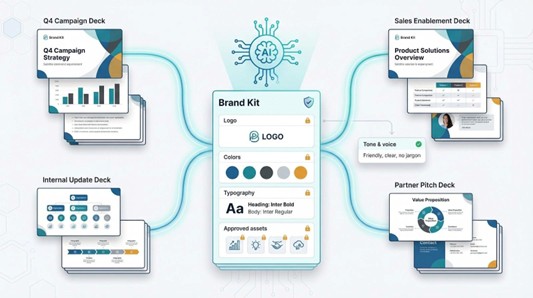
Start with a template you own. Whether it is a PowerPoint master, a Google Slides theme, or a Canva Brand Kit, load that file before you click any “Generate” button. Most tools will inherit the fonts and palette automatically, saving you an hour of cleanup later.
Lock the look. Platforms such as Pitch, Visme, and Beautiful.ai let you restrict colours, fonts, even logo placement. Turn those locks on so junior teammates, and the AI, can create without drifting off brand.
Proof the voice. AI copy often sounds neutral by default, but your brand likely does not. Read slides aloud. Swap generic phrases for your preferred tone and vocabulary. A quick human pass turns “innovative solutions” into language your customers actually use.
Finally, centralise assets. Keep approved photos, icons, and product shots in one shared library. Drop a link into the AI prompt or store the folder inside the tool so the assistant pulls from your assets first, not random stock.
With these habits the AI becomes a brand ally, not a risk. You still save hours, just without sacrificing identity.
Security and data privacy: a quick gut-check before you click “Generate”
AI speed is worthless if it exposes next quarter’s launch. Run every platform through this mental checklist first.
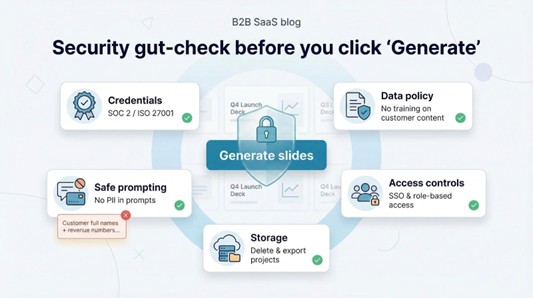
First, credentials. Look for SOC 2 or ISO 27001 badges on the vendor site; no badge, no deal, especially if client data will appear on slides.
Second, data policy. Scan the fine print for a line that reads, “We do not use customer content to train our models.” If that sentence is missing, your draft deck could train a public engine.
Third, storage location. Cloud apps keep files on their servers by default. Confirm you can delete projects permanently and export everything to your drive for archiving.
Fourth, access controls. Choose platforms with single sign-on and role permissions so interns cannot peek at embargoed roadmaps.
Finally, safe prompting. Never paste raw customer PII or revenue numbers into an AI field. Summarise sensitive data, generate the slide, then add the real figures offline.
Follow these five checks and you will enjoy AI productivity without causing an IT incident or, worse, a headline-worthy breach.
***
Sumeraayaz